NVMe is frequently featured in web hosting advertisements. It describes a storage interface designed for fast access to solid-state drives, but the user experience of a website depends on more than its drive. The practical approach is to identify when storage is the bottleneck and when another change would help more.
Quick answer: NVMe is a fast storage technology, but it is not a universal website-speed guarantee. Profile database activity, PHP workloads, cache hit rates, and network costs before deciding storage is the limiting factor.
Why storage still matters
A website uses disk storage to load application files, record logs, handle uploads, and read database data. Compared with older hard drives, modern solid-state storage generally offers lower latency and better performance for many small operations. NVMe drives can provide more parallelism than SATA-based SSD designs.
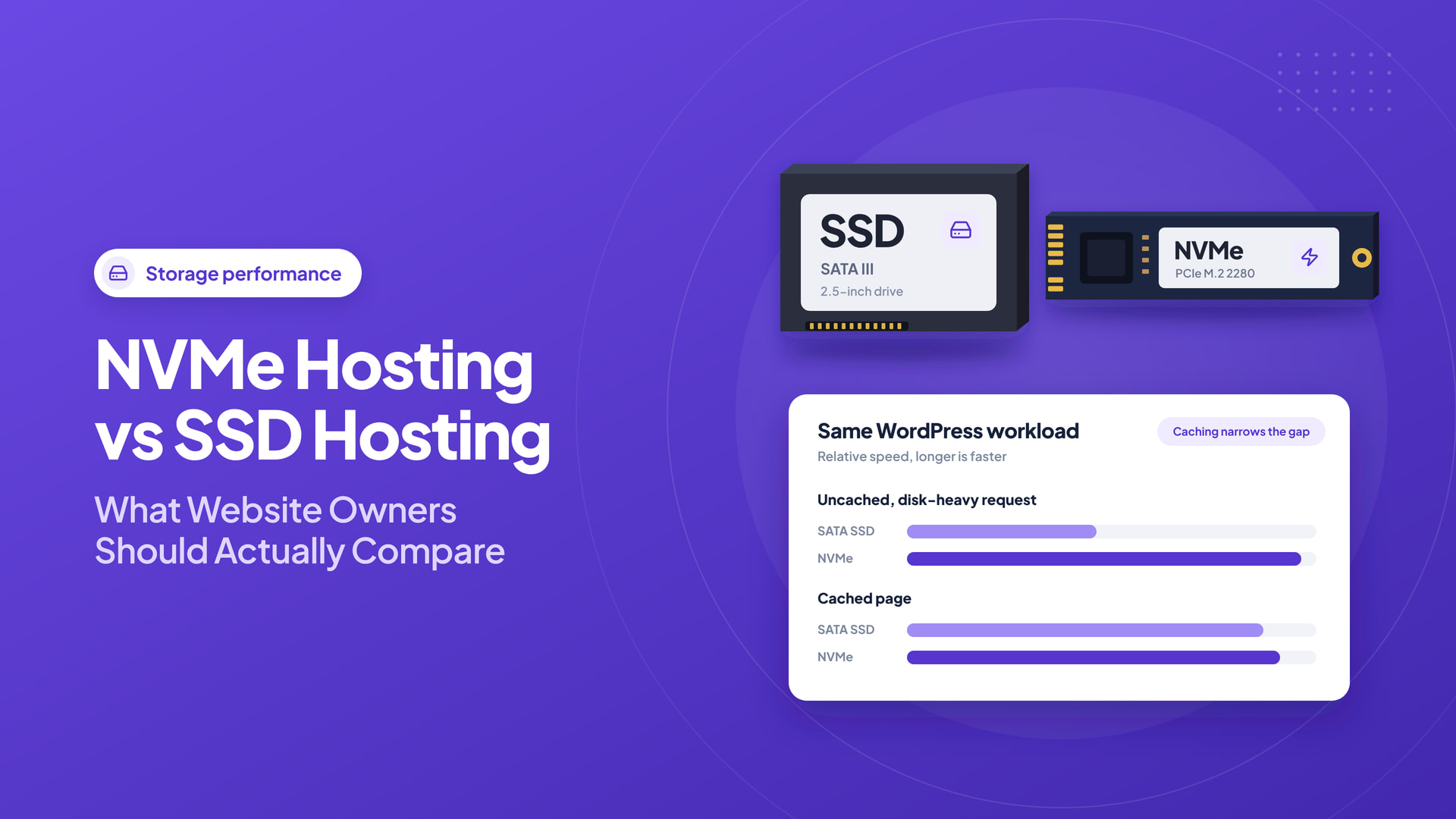
For an uncached WordPress site with frequent database reads and writes, storage performance may matter. For a page served almost entirely from a fast cache, network delivery and cache configuration can dominate the response time.
Diagnose before deciding
Open your site’s browser developer tools and look at total transfer size and network timing. Then measure server response time using a repeatable method. If images are several megabytes or JavaScript blocks rendering, upgrading storage may have little visible effect.
If the server is spending time waiting on disk reads, investigate database queries, disk saturation, memory pressure, and backup jobs. Hardware upgrades should follow evidence, not assumptions.
What makes NVMe hosting useful
A well-managed NVMe environment can support efficient database access, file operations, and application deployments. But shared hosting accounts can still have CPU, memory, I/O, and concurrent-process limits. A provider offering NVMe storage should also explain the allocated resources and acceptable use policy.
For example, Intelwebhost lists NVMe-based shared hosting packages along with cPanel, LiteSpeed, and SSL features. Compare the complete hosting stack rather than choosing based on the drive label alone.
Prioritize these optimizations first
Cache repeated requests. Page caching can reduce work done by PHP and MySQL for anonymous visitors.
Resize and compress media. Modern image formats and appropriate dimensions often yield larger perceived gains than faster storage.
Audit plugins and themes. Excessive database queries and third-party scripts can degrade otherwise capable infrastructure.
Keep adequate memory. A busy server swapping to disk may suffer regardless of drive technology.
A practical explanation of SATA SSD and NVMe
Both technologies use flash memory, but they communicate with the computer differently. Traditional SATA SSDs use a storage interface designed around older disk workloads, while NVMe drives use a protocol designed for fast solid-state access, typically over PCI Express. This can make NVMe attractive for databases and concurrent file operations, but real web-page speed depends on much more than the drive specification.
A typical visitor waits for DNS, connection setup, TLS negotiation, application processing, and page assets. If an uncached WordPress page spends most of its time running slow PHP plugins and remote API requests, upgrading storage may make only a modest difference. If the server is repeatedly reading and writing database files while disk queues grow, storage performance is more likely to be relevant.
Measure whether storage is the bottleneck
On an environment you administer, inspect disk latency, utilization, queueing, CPU wait, memory pressure, and database query times. A host’s “NVMe” label does not tell you whether your specific account is throttled or sharing heavily contended resources. Ask for test methodology, not only a benchmark screenshot. For shared hosting, performance may change with neighbor activity and the provider’s isolation policies.
Compare these signals before spending:
| Symptom | More likely starting point |
|---|---|
| Slow only after a plugin update | Plugin profiling, PHP logs, slow queries |
| Slow uploads and repeated database writes | Disk I/O, filesystem, resource limits |
| Page opens slowly for overseas visitors | Routing, CDN, oversized assets |
| Site slows during a sales campaign | PHP worker limits, database locks, caching rules |
These patterns are diagnostic clues rather than proof. Correlate observations with logs and repeatable measurements.
How to get the most from a fast disk
Start with a cache strategy appropriate to the web server. Full-page caching can avoid repeated PHP and database work for anonymous visitors. Object caching may help when application code repeatedly requests similar data, but it must be configured and monitored correctly. Reduce large transients, clean unused plugins, and keep database indexes aligned with frequent queries. Backups are important, but schedule heavy backup operations outside known peaks when the platform allows it.
Use modern image formats and appropriate dimensions instead of serving a 3 MB image inside a 300-pixel card. Configure compression and browser caching for static assets. A CDN can reduce repeat transfers for distant readers, while critical dynamic requests continue to depend on origin performance.
Compare hosts using the same WordPress workload
Create a staging copy of the same WordPress site on two hosting environments. Disable artificial differences such as one site being fully cached while the other is not. Measure representative pages and database-heavy actions, repeat tests during realistic concurrency, and inspect 95th-percentile latency instead of only the single fastest result. Note the resource plan, PHP version, theme, plugin stack, and cache settings in the report.
A server with newer storage should not automatically win if the support model, backup process, and CPU policy are worse. Choose the configuration that consistently serves the actual workload within budget.
The upgrade sequence that usually saves money
- Establish a performance baseline and identify slow routes.
- Fix oversized assets and obviously inefficient plugins.
- Enable suitable caching and verify dynamic pages.
- Review CPU, memory, and disk pressure together.
- Upgrade the resource that measurements show is constrained.
- Retest with the same content and visitor scenarios.
A realistic upgrade decision
Consider NVMe when your workload performs many database operations, frequent file reads, or significant content management activity. For small brochure sites, reliable uptime and a maintainable configuration may matter more than differences between high-end drive specifications.
Think of NVMe as one important part of a balanced system. Measure your website, fix avoidable inefficiencies, and only then choose the hardware level that matches its workload.
Frequently asked questions
Is NVMe always faster for a website visitor?
It can deliver faster storage operations, but total page-load time may be dominated by application code, network delay, and asset size.
Can caching remove the need for fast storage?
Caching reduces some reads and computations but does not eliminate database writes, administration, backups, or other disk-dependent operations.
Should I choose NVMe hosting just because it is advertised?
Treat it as a positive specification, then validate resource limits, realistic performance, backup practices, and support quality.